2016年4月3日日曜日

Arduino と Ethernet Shield (micro SD, Wiznet W5100) 使ってみた

準備   
 ◆Arduinoソフト (PCにインストール無料)


◆Arduinoハード(ピンヘッダー同梱) (360円+送料170)

◆Arduinoソフト(PC)と Arduinoハード をつなぐUSBケーブル(100円+送料170円)
  

◆ Ethernet  Shield(870円+送料170円)


◆ LANケーブル


◆Micro SD


工作開始

 1   Ethernet

◆(; ̄Д ̄)   Non-printed  MAC address (MACアドレス印刷されていない)
 local network ok, But  no internet(LANで使う分には問題ない、しかしWANで使うには登録必要と思う)

◆(; ̄Д ̄)
 (︶︹︺)
<( ̄ ﹌  ̄)>

◆全てつなぎましょう


◆Arduinoソフトにスケッチを書きましょう
 
#include <SPI.h>
#include <Ethernet.h>

byte mac[] = { 0x00, 0xAA, 0xBB, 0xCC, 0xDE, 0x02 };
EthernetClient client;

void setup() {
  Serial.begin(9600);
  if (Ethernet.begin(mac) == 0) {
    Serial.println("Failed to configure Ethernet using DHCP");
    for(;;)
      ;  // 永遠に何もしない
  }
  Serial.println(Ethernet.localIP());  // IPアドレスを表示
}

void loop() {
} 

◆Arduinoハード(マイコンボード)にスケッチを書き込みましょう


◆シリアルモニタで見てみましょう
  
  
 2  micro SD

◆全てつなぎましょう
  
◆Arduinoソフトにスケッチを書きましょう


/*
  SD card test
  
 This example shows how use the utility libraries on which the'
 SD library is based in order to get info about your SD card.
 Very useful for testing a card when you're not sure whether its working or not.
    
 The circuit:
  * SD card attached to SPI bus as follows:
 ** MOSI - pin 11 on Arduino Uno/Duemilanove/Diecimila
 ** MISO - pin 12 on Arduino Uno/Duemilanove/Diecimila
 ** CLK - pin 13 on Arduino Uno/Duemilanove/Diecimila
 ** CS - depends on your SD card shield or module.
         Pin 4 used here for consistency with other Arduino examples


 created  28 Mar 2011
 by Limor Fried
 modified 9 Apr 2012
 by Tom Igoe
 */
 // include the SD library:
#include <SD.h>

// set up variables using the SD utility library functions:
Sd2Card card;
SdVolume volume;
SdFile root;

// change this to match your SD shield or module;
// Arduino Ethernet shield: pin 4
// Adafruit SD shields and modules: pin 10
// Sparkfun SD shield: pin 8
const int chipSelect = 4;   

void setup()
{
 // Open serial communications and wait for port to open:
  Serial.begin(9600);
   while (!Serial) {
    ; // wait for serial port to connect. Needed for Leonardo only
  }


  Serial.print("\nInitializing SD card...");
  // On the Ethernet Shield, CS is pin 4. It's set as an output by default.
  // Note that even if it's not used as the CS pin, the hardware SS pin
  // (10 on most Arduino boards, 53 on the Mega) must be left as an output
  // or the SD library functions will not work.
  pinMode(10, OUTPUT);     // change this to 53 on a mega


  // we'll use the initialization code from the utility libraries
  // since we're just testing if the card is working!
  if (!card.init(SPI_HALF_SPEED, chipSelect)) {
    Serial.println("initialization failed. Things to check:");
    Serial.println("* is a card is inserted?");
    Serial.println("* Is your wiring correct?");
    Serial.println("* did you change the chipSelect pin to match your shield or module?");
    return;
  } else {
   Serial.println("Wiring is correct and a card is present.");
  }

  // print the type of card
  Serial.print("\nCard type: ");
  switch(card.type()) {
    case SD_CARD_TYPE_SD1:
      Serial.println("SD1");
      break;
    case SD_CARD_TYPE_SD2:
      Serial.println("SD2");
      break;
    case SD_CARD_TYPE_SDHC:
      Serial.println("SDHC");
      break;
    default:
      Serial.println("Unknown");
  }

  // Now we will try to open the 'volume'/'partition' - it should be FAT16 or FAT32
  if (!volume.init(card)) {
    Serial.println("Could not find FAT16/FAT32 partition.\nMake sure you've formatted the card");
    return;
  }


  // print the type and size of the first FAT-type volume
  uint32_t volumesize;
  Serial.print("\nVolume type is FAT");
  Serial.println(volume.fatType(), DEC);
  Serial.println();
 
  volumesize = volume.blocksPerCluster();    // clusters are collections of blocks
  volumesize *= volume.clusterCount();       // we'll have a lot of clusters
  volumesize *= 512;                            // SD card blocks are always 512 bytes
  Serial.print("Volume size (bytes): ");
  Serial.println(volumesize);
  Serial.print("Volume size (Kbytes): ");
  volumesize /= 1024;
  Serial.println(volumesize);
  Serial.print("Volume size (Mbytes): ");
  volumesize /= 1024;
  Serial.println(volumesize);

 
  Serial.println("\nFiles found on the card (name, date and size in bytes): ");
  root.openRoot(volume);
 
  // list all files in the card with date and size
  root.ls(LS_R | LS_DATE | LS_SIZE);
}

void loop(void) {
 
}

 ◆Arduinoハード(マイコンボード)にスケッチを書き込みましょう

◆シリアルモニタで見てみましょう

2016年3月22日火曜日

Arduino と HMC5883L 3軸磁気センサー 使ってみた

準備   
 ◆Arduinoソフト (PCにインストール無料)


◆Arduinoハード(ピンヘッダー同梱) (360円+送料170円)


◆Arduinoソフト(PC)と Arduinoハード をつなぐUSBケーブル(100円+送料170円)


◆ GY-271 HMC5883L 3軸磁気センサー(380円+送料170円)


◆ ブレッドボード・ジャンパーワイヤ40本(100円+送料170円)


工作開始
◆全てつなぎましょう

 ◆ハード(マイコンボード)に Arduino Uno を選びましょう


◆Arduinoソフトにスケッチを書きましょう


 /*
An Arduino code example for interfacing with the HMC5883

by: Jordan McConnell
 SparkFun Electronics
 created on: 6/30/11
 license: OSHW 1.0, http://freedomdefined.org/OSHW

Analog input 4 I2C SDA
Analog input 5 I2C SCL
*/

#include <Wire.h> //I2C Arduino Library

#define address 0x1E //0011110b, I2C 7bit address of HMC5883

void setup(){
  //Initialize Serial and I2C communications
  Serial.begin(9600);
  Wire.begin();
  
  //Put the HMC5883 IC into the correct operating mode
  Wire.beginTransmission(address); //open communication with HMC5883
  Wire.write(0x02); //select mode register
  Wire.write(0x00); //continuous measurement mode
  Wire.endTransmission();
}

void loop(){
  
  int x,y,z; //triple axis data

  //Tell the HMC5883 where to begin reading data
  Wire.beginTransmission(address);
  Wire.write(0x03); //select register 3, X MSB register
  Wire.endTransmission();
  
 
 //Read data from each axis, 2 registers per axis
  Wire.requestFrom(address, 6);
  if(6<=Wire.available()){
    x = Wire.read()<<8; //X msb
    x |= Wire.read(); //X lsb
    z = Wire.read()<<8; //Z msb
    z |= Wire.read(); //Z lsb
    y = Wire.read()<<8; //Y msb
    y |= Wire.read(); //Y lsb
  }
  
  //Print out values of each axis
  Serial.print("x: ");
  Serial.print(x);
  Serial.print("  y: ");
  Serial.print(y);
  Serial.print("  z: ");
  Serial.println(z);
  
  delay(250);
}


◆Arduinoハード(マイコンボード)にスケッチを書き込みましょう


◆シリアルモニタで見てみましょう


別のソフトを使って出力されたX,Y,Zをプロットしてみると(Plot  value)


2016年3月20日日曜日

Arduino と Arduino Pro Mini 328 5V 16MHz 使ってみた

2017年10月      USB-TTL変換を追加
・CP2102(6pin)

2016年12月      USB-TTL変換を追加
・CH340(6pin)
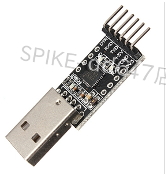
・PL2303(4pin)
・PL2303(5pin)

準備   
 ◆Arduino IDE (PCにインストール無料)

◆Arduino Uno(ピンヘッダー同梱) (360円+送料170円)
※無くても可


◆Arduino IDE(PC)と Arduino Uno をつなぐUSBケーブル(100円+送料170円)


◆Arduino Pro Mini ATMEGA328P 5V 16MHz(320円+送料170円)
  
 ◆USBシリアル変換モジュール
※無くても可
 (580円)FT232RL

(340円)cp2102


 (220円)CH340

(220円) PL2303(5pin)


 (220円)PL2303(4pin)


◆Arduino IDE(PC)とUSBシリアル変換モジュール(FT232RL)をつなぐMiniUSBケーブル(100円)

工作開始
方法1: (FTDI FT232RL) 又は (cp2102) を使用
※cp2102のTXD、RXDの入出力は3.3V。しかし、絶対最大定格は5.8V。
cp2102 TTL is 3.3V。but,Absolute Maximum Ratings is 5.8V。

◆つなぎましょう.


It lights up without anything
何もしなくともLチカしている

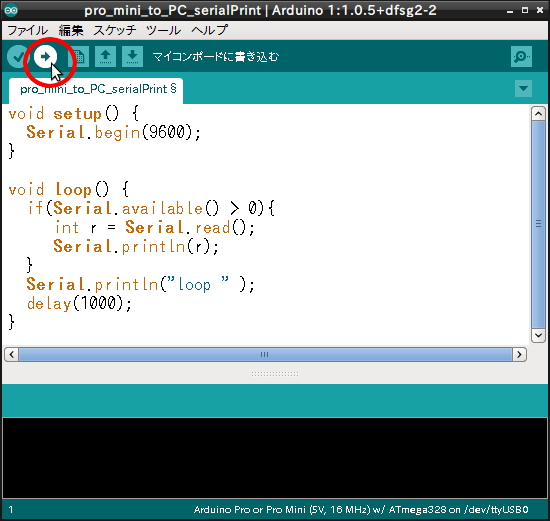
◆Arduino Pro mini に スケッチを書き込みましょう
void setup() {
  pinMode(13, OUTPUT); 
}
void loop() {
  digitalWrite(13, HIGH); 
  delay(100);                
  digitalWrite(13, LOW);  
  delay(100);
}

Ardduino Pro or Pro Mini(5V, 16MHz)W/ATmega328

→

成功、 success


 方法2:Arduino Uno を使用
◆つなぎましょう.

◆Arduino Unoに ArduinoISP を書き込みましょう
ファイル>スケッチの例>ArduinoISP


ツール>マイコンボード>Arduino Uno


→
◆つなぎましょう.

◆Arduino Pro mini に スケッチを書き込みましょう
 void setup() {
  pinMode(13, OUTPUT); 
}
void loop() {
  digitalWrite(13, HIGH); 
  delay(100);                
  digitalWrite(13, LOW);  
  delay(100);
}

Ardduino Pro or Pro Mini(5V, 16MHz)W/ATmega328

Arduino as ISP

→


失敗エラー、error 
avrdude: stk500_getsync() attempt 1 of 10: not in sync:resp=

そこで、Well

成功、 success

◆しかし、but
再び  (FTDI FT232RL) 又は (cp2102)を使用、again with the FTDI FT232RL or cp2102


失敗エラー、error

◆そこで、well
ブートローダ書き込む、write a boot loader


 Ardduino Pro or Pro Mini(5V, 16MHz)W/ATmega328


Arduino as ISP


◆再び、retry


成功、 success

 方法3: (CH340) と (FTDI FT232RL) 又は (cp2102)を使用
・ FTDI FT232RL
(スケッチを書き込めます)
(This has DTR pin. can write a sketch)

※cp2102のTXD、RXDの入出力は3.3V。しかし、絶対最大定格は5.8V。
cp2102 TTL is 3.3V。but,Absolute Maximum Ratings is 5.8V。


・CH340
(スケッチは書き込めません、通信はできます)
(This doesn't have a DTR pin. can not write a sketch) 


◆最初に、first


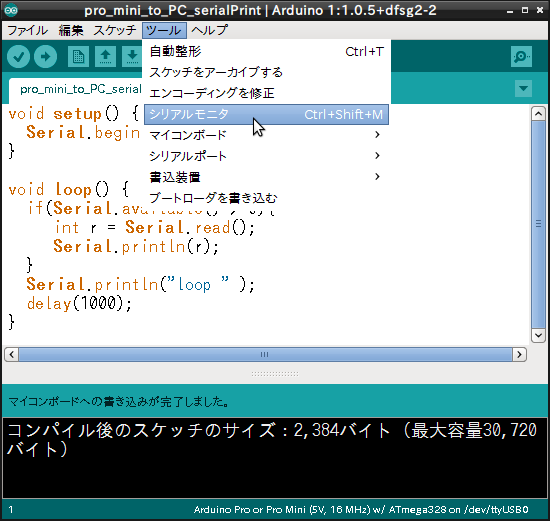
void setup() {
  Serial.begin(9600);
}
void loop() {
  if(Serial.available() > 0){
     int r = Serial.read();
     Serial.println(r);
  }
  Serial.println("loop " );                      
  delay(1000);  
}

◆次に、next


input the a and send

成功、 success.
ASCII code of the a is 97
ASCII code of the CR is 13
ASCII code of the LF is 10

  方法4: FTDI FT232RL と PL2303(5pin) を使用
・ FTDI FT232RL
(スケッチを書き込めます)
(This has DTR pin. can write a sketch)

※cp2102のTXD、RXDの入出力は3.3V。しかし、絶対最大定格は5.8V。
cp2102 TTL is 3.3V。but,Absolute Maximum Ratings is 5.8V。


・PL2303(5pin)
(スケッチは書き込めません、通信はできます)
(This doesn't have a DTR pin. can not write a sketch) 


◆最初に、first


void setup() {
  Serial.begin(9600);
}
void loop() {
  if(Serial.available() > 0){
     int r = Serial.read();
     Serial.println(r);
  }
  Serial.println("loop " );                      
  delay(1000);  
}

◆次に、next


input the a and send

成功、 success.
ASCII code of the a is 97
ASCII code of the CR is 13
ASCII code of the LF is 10


  方法5:( FTDI FT232RL 又は cp2102) と (PL2303) と (2sk30A(N-JFET) )と (レギュレータ) と (抵抗) を使用
 ・ FTDI FT232RL
(スケッチを書き込めます)
(This has DTR pin. can write a sketch)

※cp2102のTXD、RXDの入出力は3.3V。しかし、絶対最大定格は5.8V。
cp2102 TTL is 3.3V。but,Absolute Maximum Ratings is 5.8V。


・PL2303
(スケッチは書き込めません、通信はできます)
(This doesn't have a DTR pin. can not write a sketch)


・2sk30A
何かレベル変換できるもの


・レギュレータ(Voltage Regulator )
何か電圧変換できるもの

・抵抗
何か pull up できるもの  


 ◆最初に、first


void setup() {
  Serial.begin(9600);
}
void loop() {
  if(Serial.available() > 0){
     int r = Serial.read();
     Serial.println(r);
  }
  Serial.println("loop " );                      
  delay(1000);  
}

◆次に、next


input the a and send

成功、 success.
ASCII code of the a is 97
ASCII code of the CR is 13
ASCII code of the LF is 10